
Technology
How iTop Easy Desktop Helped Me Organize My Windows Desktop?

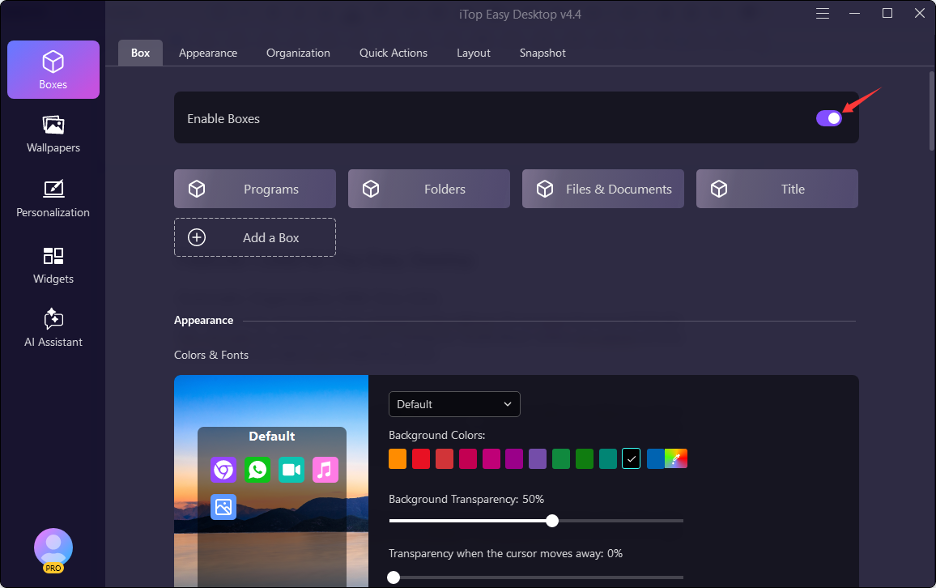
I never paid much attention to how my Windows desktop was arranged. I would save a file, download something, create a shortcut, and move on. After some time, all those small actions added up. The problem was not always the number of files. It was that everything was sharing the same space.
I wanted my desktop to fit the way I worked. Instead of keeping files, folders, apps, and shortcuts mixed together, I wanted separate areas for different tasks. That is where iTop Easy Desktop became useful.
It offers desktop boxes, automatic sorting, search, widgets, snapshots, screenshots, wallpapers, and other tools that can turn a basic Windows desktop into a more organized workspace.
Features That Helped Me to Structure My Desktop
Here are the features that helped me quite a lot
Auto-Organization
The auto-organization feature gave me a simple starting point. iTop Easy Desktop can sort desktop items into groups such as Documents, Images, Applications, and Folders.
Instead of moving every icon myself, I can let the tool create a basic arrangement and then make changes afterward. This is especially useful when the desktop already contains a mixture of different files and shortcuts.
Custom Desktop Boxes

Boxes are one of the main features I would use for daily organization. I can create separate areas for different tasks or types of items.
iTop Easy Desktop also gives several ways to create a box. I can use the Boxes panel, draw an area on the desktop, use the right-click menu, or select icons and create a box for them.
Search and Folder Portal
Even with a structured desktop, I do not want to spend time looking through folders for one file. The built-in search lets me find files and folders by name. Folder Portal is also useful for folders I open regularly because I can access their contents directly from the desktop.
This can save a few extra steps during busy work sessions.
Snapshot
After spending time arranging my desktop, I want a way to keep that setup safe. The Snapshot feature lets me save the current desktop layout and restore it later. I would use this before making major changes, especially if I am trying a new arrangement.
Double-Click Hide
Double-Click Hide can quickly hide desktop boxes, which can come in handy during screen sharing. Discover New Files can point out recently added files that have not yet been placed into an existing box.
Virtual Pet
PawPal adds a small digital pet to the desktop and supports different interactions. I like the extra bit of fun, although the current selection of characters is still limited.
Key Steps to Use iTop Easy Desktop
Here are the key steps I follow to use iTop Easy Desktop
Install and Open
I would first download and install iTop Easy Desktop on Windows. After opening the software, I can start working on the desktop arrangement.
Pick a Starting Method
The Get Started section provides Quick Start and Customize options. Quick Start can automatically arrange desktop items using preset rules. Customize gives me more control over how I want the desktop arranged.
If my desktop is already crowded, I would start with Quick Start and then adjust the result.
Create Useful Boxes
Next, I would create boxes based on the way I use my computer.
I might keep current projects in one box, frequently used applications in another, and important folders somewhere else. I would keep the number of boxes reasonable so the layout remains easy to understand.
Add Tools and Save
Once the main areas are ready, I would add useful widgets and shortcuts for folders I visit often.
Then I would save the arrangement with Snapshot. If I later prefer the previous layout, I have a saved version to return to.
What Could Be Improved?
The first setup can take some planning if the desktop already contains hundreds of files and shortcuts. Some users may also want more advanced customization options for desktop boxes.
PawPal is enjoyable, but its current selection of characters is limited compared with the number of characters that could be added later.
Final Thoughts
Giving my desktop some structure changes how I use it every day. Instead of seeing one large collection of icons, I can divide the space according to the tasks I handle most often.
For me, the main benefit is simple. This desktop organizer software becomes easier to understand at a glance. I know where my regular files and tools belong, and I can get to them without spending time sorting through everything.

Julie Hallam: The Untold Story of Jeremy Irons’ First Wife and Her Acting Career

Alizeh Keshvar Davis Jarrahy: The Remarkable Story of Geena Davis’s Daughter Who Inspired Change in Hollywood

Michael Ciminella: The Remarkable Life of Ashley Judd’s Father and Naomi Judd’s First Husband

Methatreams Explained: The Surprising Truth About Free Sports Streaming, Safety, and Legal Alternatives

Debra Bollman: The Remarkable True Story Behind Her Viral Nigel Hayes Moment

sosoactive: The Surprising Evolution of a Digital Media Platform and Its Online Influence

Atlanta Hawks vs Celtics Match Player Stats: Stunning 112–102 Victory and Complete Game Analysis

Milwaukee Bucks vs Lakers Match Player Stats: Thrilling 105–101 Result, Top Performers and Full Analysis

Atlanta Falcons vs 49ers Match Player Stats: Stunning McCaffrey Performance and Complete Game Breakdown

Tamil Students Association: The Powerful Role of Culture, Community, and Student Success

Everest Base Camp Trek vs Manaslu Circuit Trek: Routes, Difficulty, Costs, Altitude and Mountain Experience

Classroom 15x: The Ultimate Guide to Free Online Games, Features, Benefits, and Safe Gaming

Crackstube Explained: A Complete Guide to Its Features, Content, Safety, and Digital Publishing Platform

Provascin: A Complete Guide to Its Ingredients, Potential Benefits, Uses, and Safety

ABS Testauslösung: Bedeutung, Funktion, häufige Fehler und wichtige Sicherheitstipps

HMJones.net Explained: A Complete Guide to Business Loans, Funding Options, and Smarter Financial Decisions

Startup Booted Fundraising Strategy: A Powerful Guide to Smart Funding and Sustainable Business Growth

Pedal And Post Collapse: The Shocking Closure of Oxford’s Pioneering Green Delivery Company

Glorvix Com About Us: The Essential Guide to Its Services, Mission, and Company Background

Sajar Plastics Inc: The Remarkable Story Behind Its Advanced Plastic Manufacturing Technology
Julie Hallam: The Untold Story of Jeremy Irons’ First Wife and Her Acting Career
Alizeh Keshvar Davis Jarrahy: The Remarkable Story of Geena Davis’s Daughter Who Inspired Change in Hollywood
Michael Ciminella: The Remarkable Life of Ashley Judd’s Father and Naomi Judd’s First Husband
Methatreams Explained: The Surprising Truth About Free Sports Streaming, Safety, and Legal Alternatives
Debra Bollman: The Remarkable True Story Behind Her Viral Nigel Hayes Moment
sosoactive: The Surprising Evolution of a Digital Media Platform and Its Online Influence
Atlanta Hawks vs Celtics Match Player Stats: Stunning 112–102 Victory and Complete Game Analysis
Milwaukee Bucks vs Lakers Match Player Stats: Thrilling 105–101 Result, Top Performers and Full Analysis
Atlanta Falcons vs 49ers Match Player Stats: Stunning McCaffrey Performance and Complete Game Breakdown
Tamil Students Association: The Powerful Role of Culture, Community, and Student Success
-
 Blog3 months ago
Beyond the Cages: How an Artificial Zoo Could Redefine Wildlife Travel
-
 Destination Guides3 months ago
Beyond the Map: Discovering Haslhof in Italy and Bavaria
-
Adventure Travel3 weeks ago
Everest Base Camp Trek vs Manaslu Circuit Trek: Routes, Difficulty, Costs, Altitude and Mountain Experience
-
 Entertainment2 weeks ago
Classroom 15x: The Ultimate Guide to Free Online Games, Features, Benefits, and Safe Gaming